It's easier than you think
How FreshGen Works
From first conversation to live website, and every change after that — here's what using FreshGen actually feels like.
It starts with what's in your head.
You don't need a brief, a wireframe, or a folder of inspiration. You just need to know roughly what you want — and you can start there.
 Got it. Tell me a bit more — what do you mainly sell, and who are your customers?
 Tell FreshGen what the website is for.
Not a form. Not a template picker. Just a conversation — the same way you'd explain it to a friend who happens to build websites.
Perfect. I'm thinking a homepage, a menu page, and a find-us page with your opening hours and address. Does that sound right? It comes back with a plan.
Before FreshGen builds anything, it shows you what it's thinking. You can adjust the plan, cut pages, add sections, or redirect entirely — before a single line of code is written.
Here's my plan: Homepage with a hero and a short about section. Menu page with categories. Find Us page with a map embed, address, and hours. Shall I go ahead? Done. I'll add a Catering page. Building now. Watch it come together.
Once you approve the plan, FreshGen builds the site. Not a skeleton — a real, styled, content-filled website. It usually takes less than a minute.
React to it, the way you would with a designer.
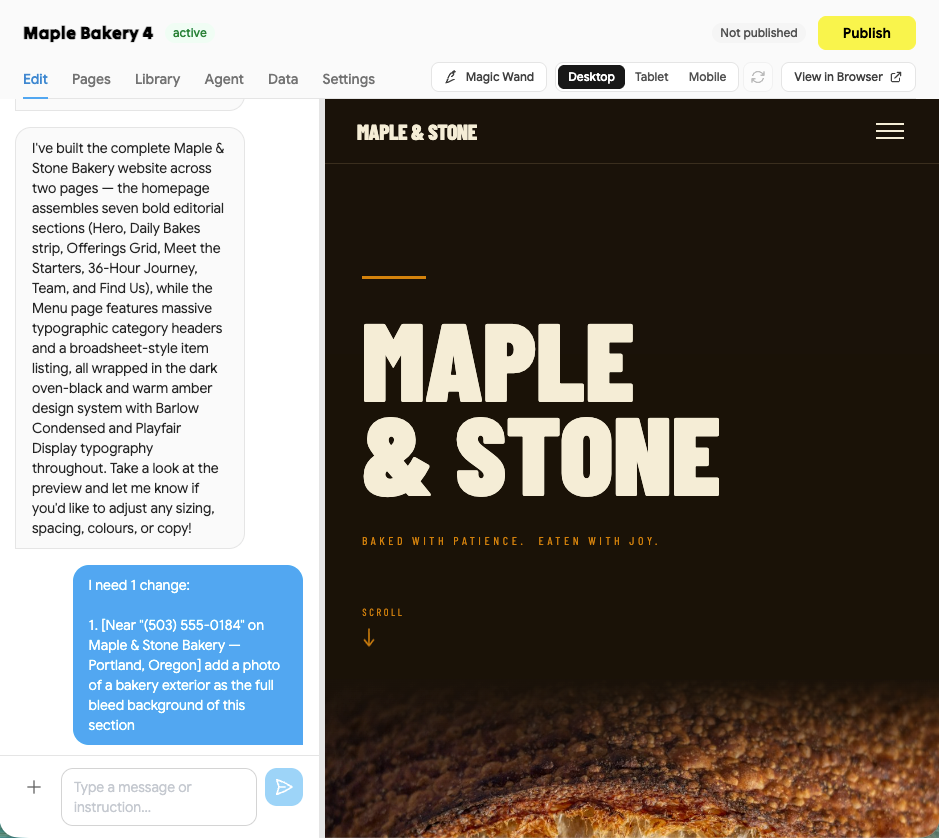
You see the site in a live preview. If something's not right, you just say so — in plain English, the same way you'd give feedback to a person.
Switching to a warm cream and terracotta palette. One moment. Point instead of describing.
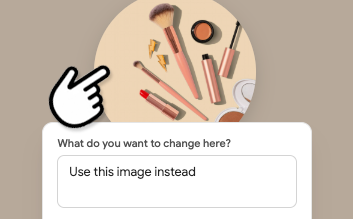
When words aren't quite enough, use the Magic Wand. Click on any element in the preview and tell FreshGen what to change — no need to describe where it is.
Show it, don't explain it.
Got a website you love the look of? A brand guide? A screenshot? Just share it. FreshGen can work from references the same way a designer would.
I can see the reference — clean card layout, generous whitespace, serif headings. Applying that style now. It remembers you.
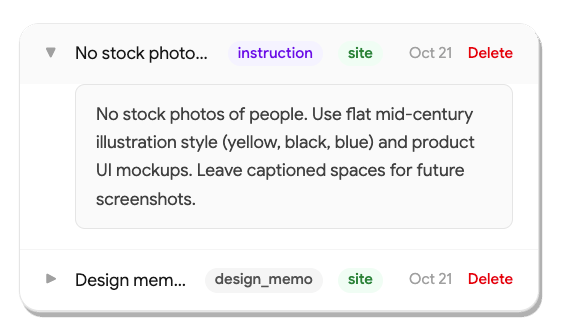
FreshGen builds up a memory of your brand as you work — your colours, your tone of voice, your preferences. Every future change starts from that foundation.
Then it's yours to keep changing.
Your website isn't finished when it goes live — it's just starting. Add a new product, update your opening hours, run a seasonal promotion. Any time, in seconds.
Added a seasonal banner at the top of the homepage. Want me to set it to disappear after Christmas? When it looks right, you publish. One click, and it's live on your domain — no deployment, no developer, no waiting.